Getting started
The core path from a blank signup form to a working studio with a class, a student, and a teacher on board. Most owners get through this in under ten minutes.
Create your account
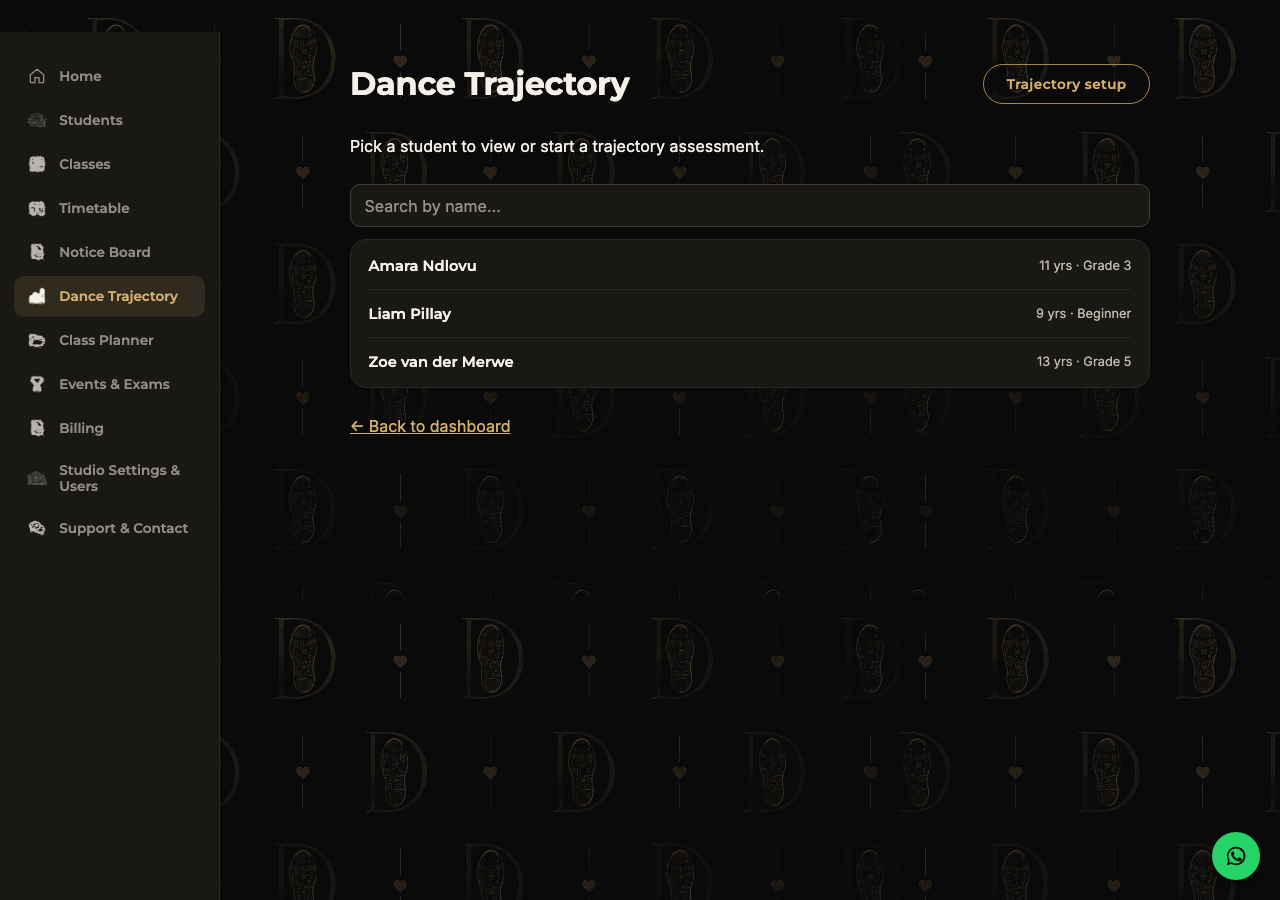
Head to your DancePassport sign-up link and enter an email and password. This becomes your login — you'll use it every time you come back.
Set up your studio
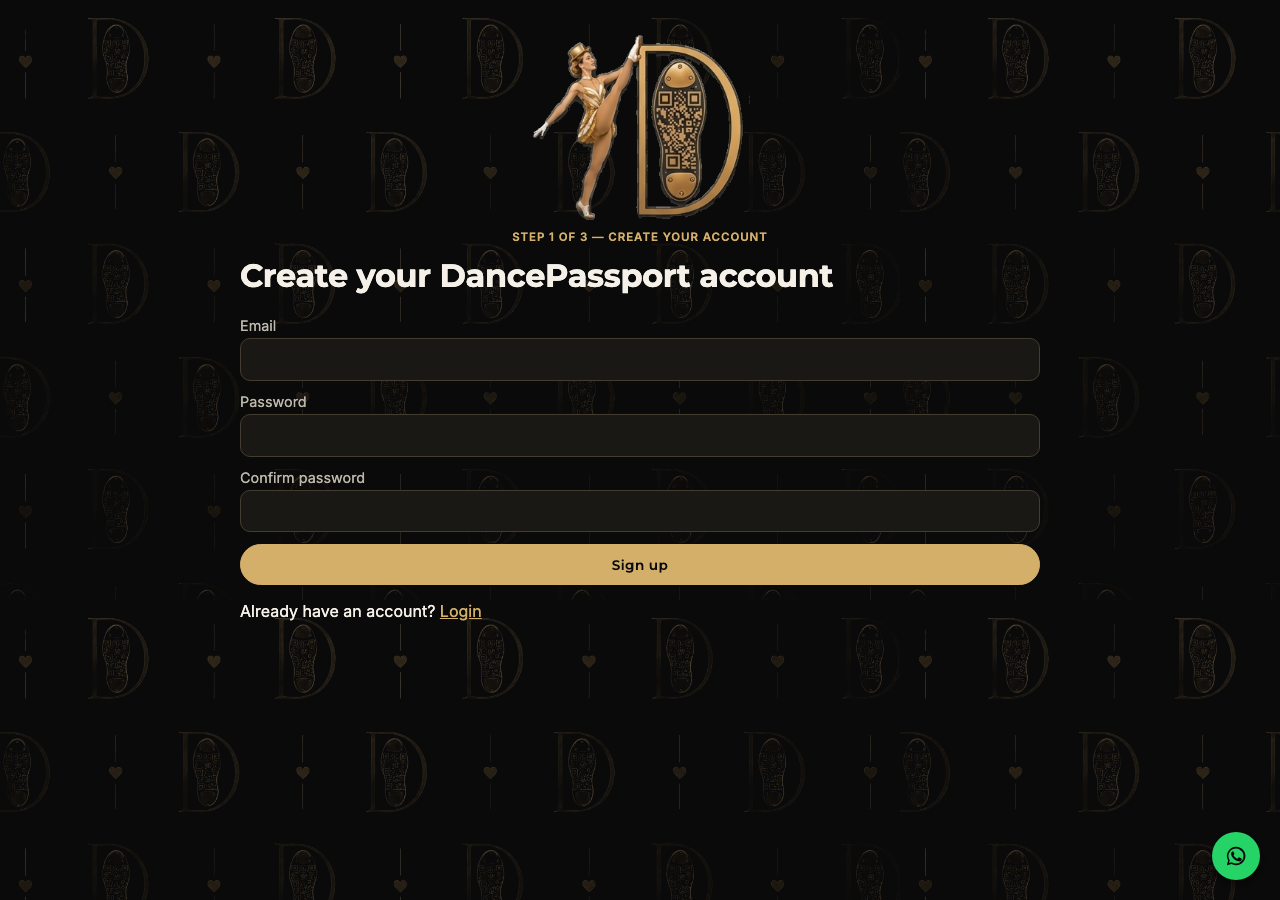
Next, tell us about your studio: its name, billing country, and your own contact details. The billing country matters — it determines your currency and which payment provider handles your subscription (PayFast for South Africa, Paddle everywhere else).
Choose a plan
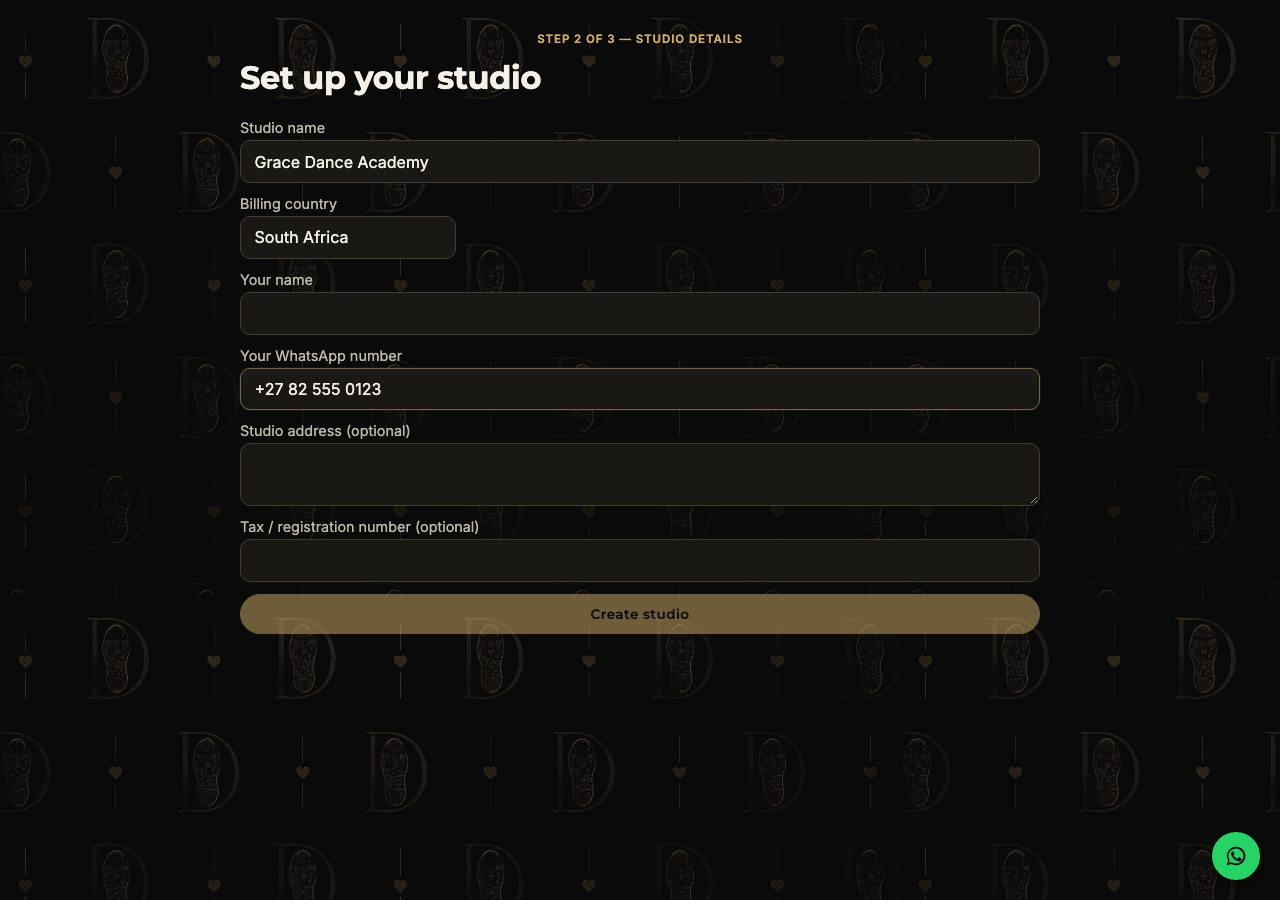
Every plan starts with a 7-day free trial — nothing is charged until it ends, and you can cancel any time before then. Pick the tier that matches how many user profiles you expect (owners, teachers, parents, and students all count toward that number).
Your dashboard
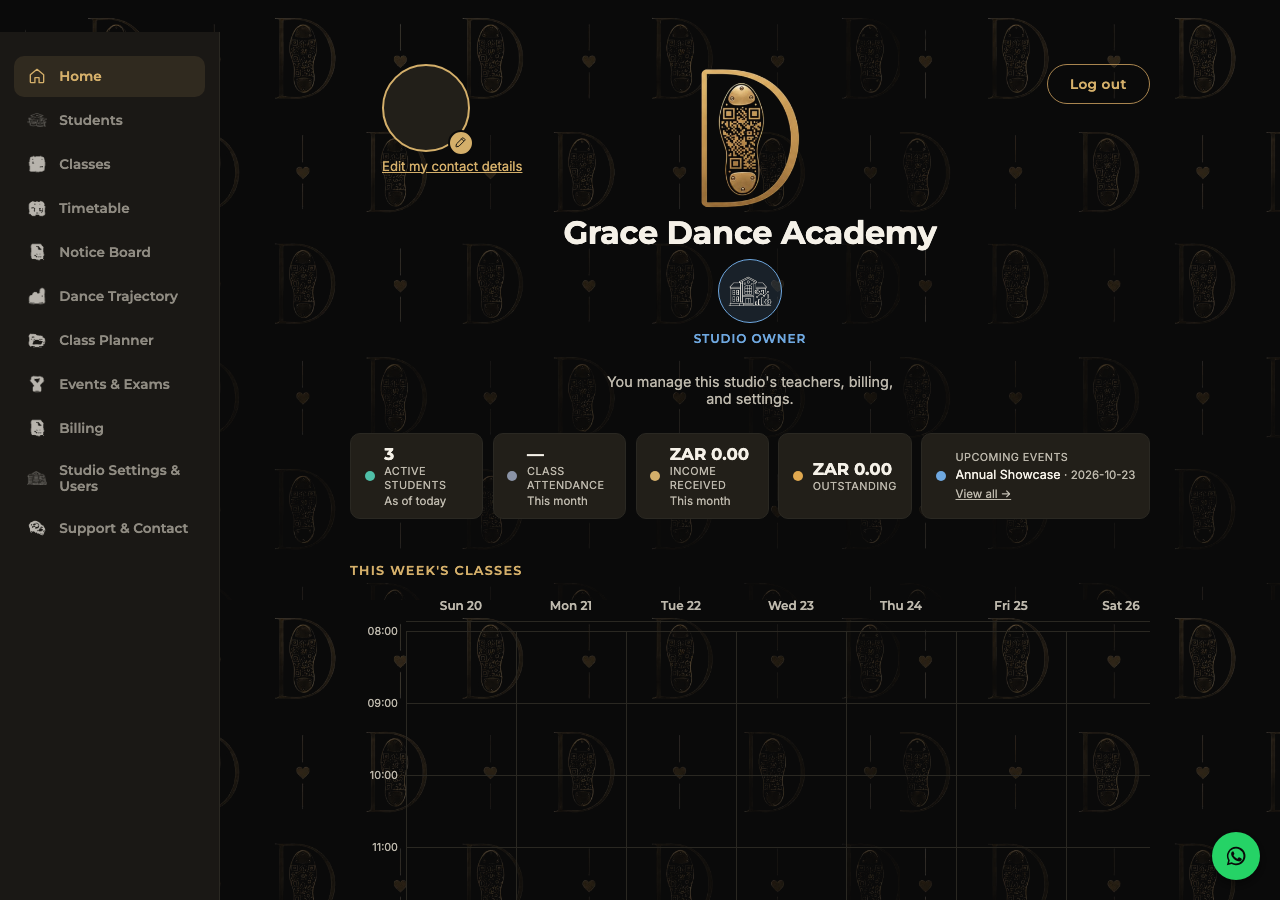
This is home base. At a glance: active students, this month's attendance and income, outstanding balances, upcoming events, and this week's classes. The left-hand menu is how you get everywhere else in the app.
Add your first class
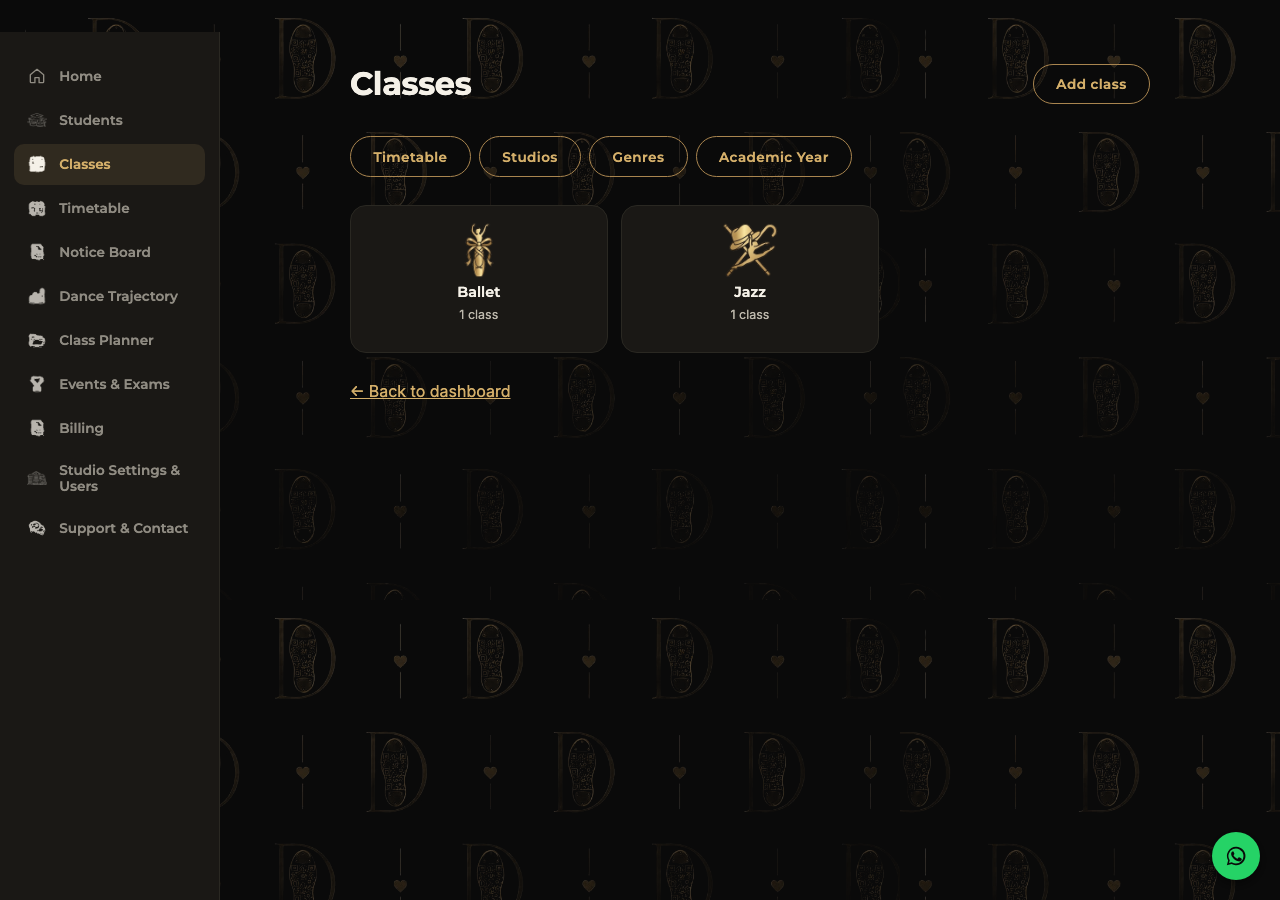
Go to Classes → Add class. Give it a name, an optional genre and syllabus level, a capacity, a rate per session, and a teacher. Genres are quick to set up too — the Classes page suggests common ones (Ballet, Tap, Jazz, Hip Hop and more) as one-click additions.
Add your first student
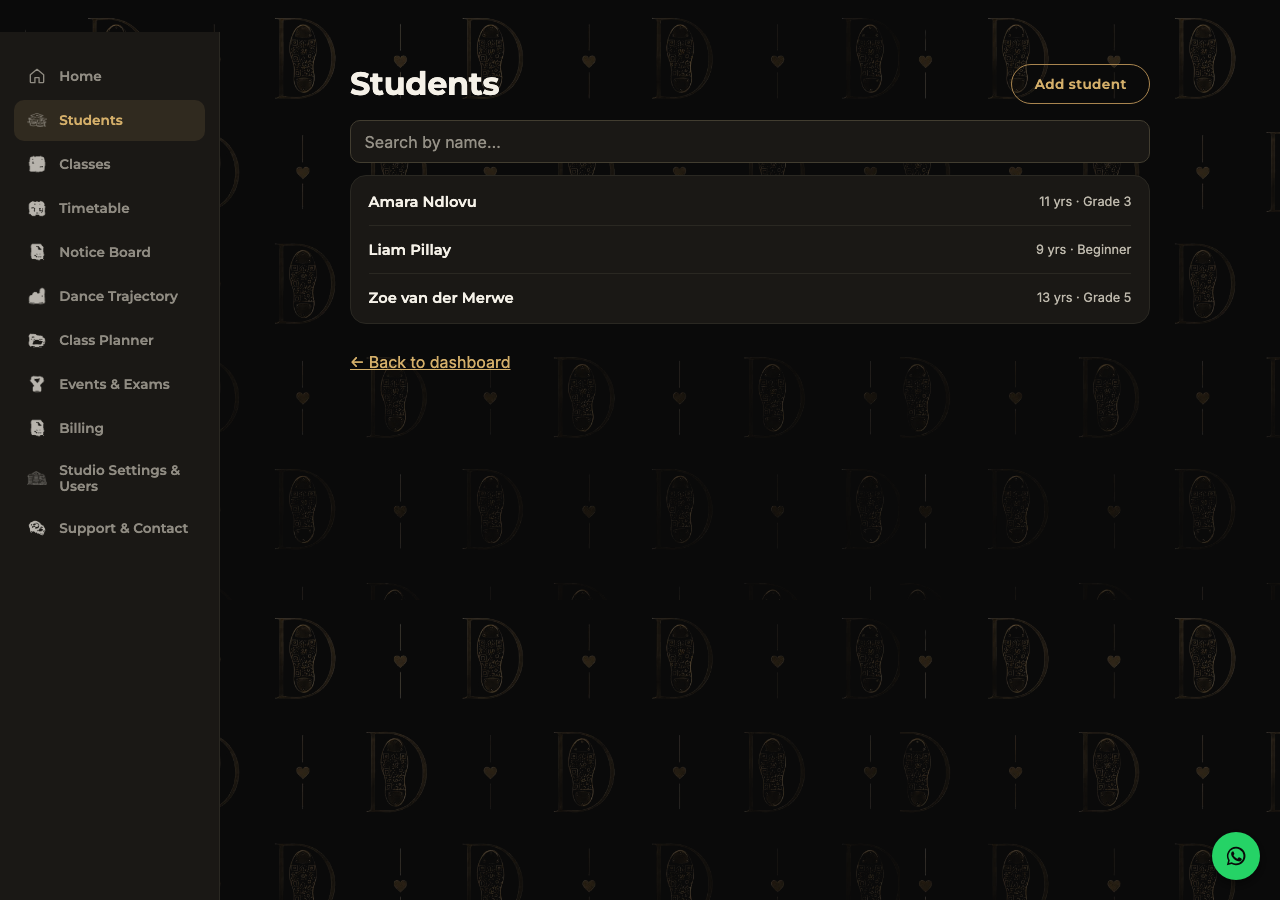
Go to Students → Add student. Basic details — name, date of birth, syllabus level — are all you need to start. You can enroll them into classes and link a parent or guardian afterward from their profile.
Each student's QR code
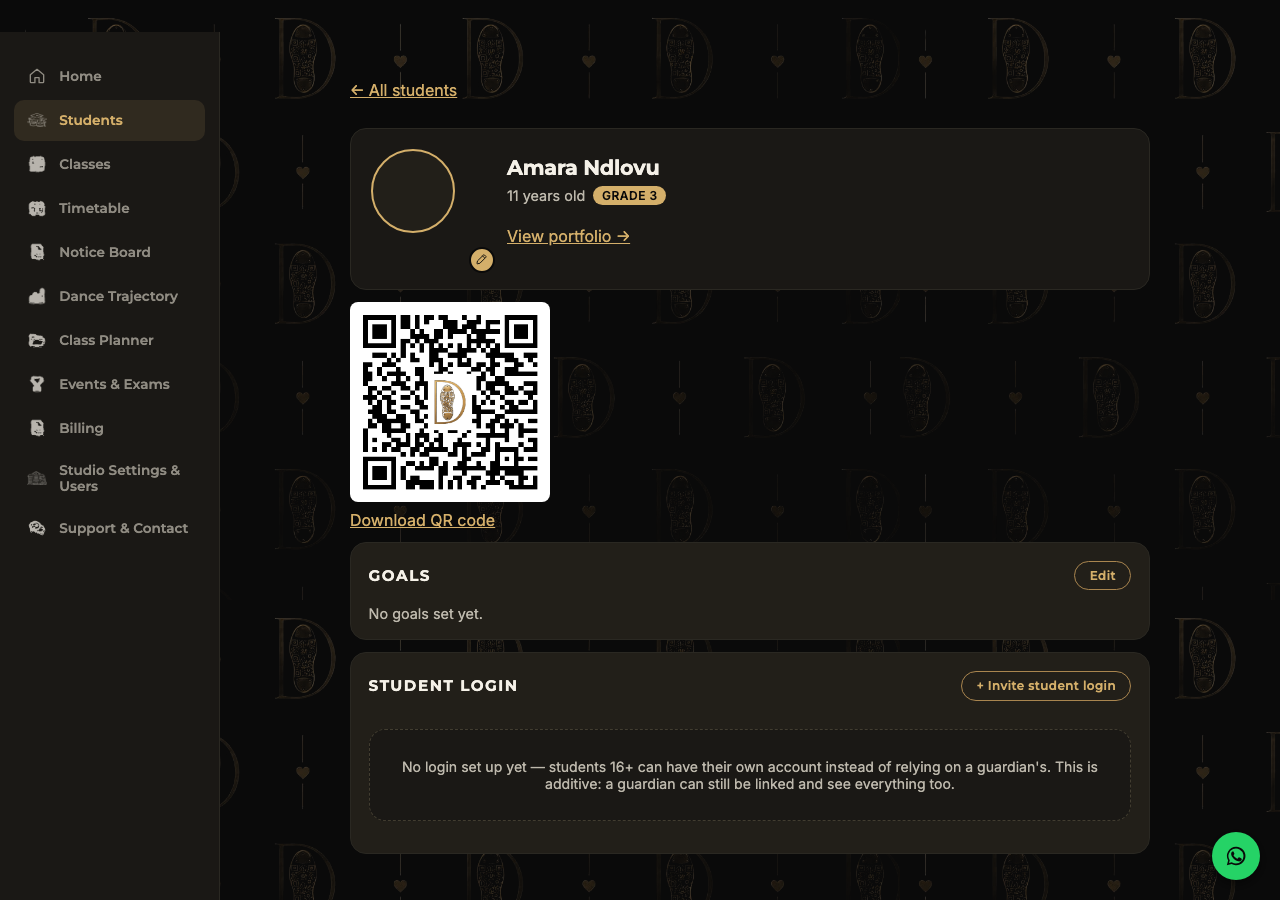
Every student gets their own unique QR code automatically, right on their profile — no setup needed. A teacher scans it at the start of class for instant attendance, and it's what powers the whole "scan, connect, grow" flow the app is built around.
Invite a teacher (or co-owner)
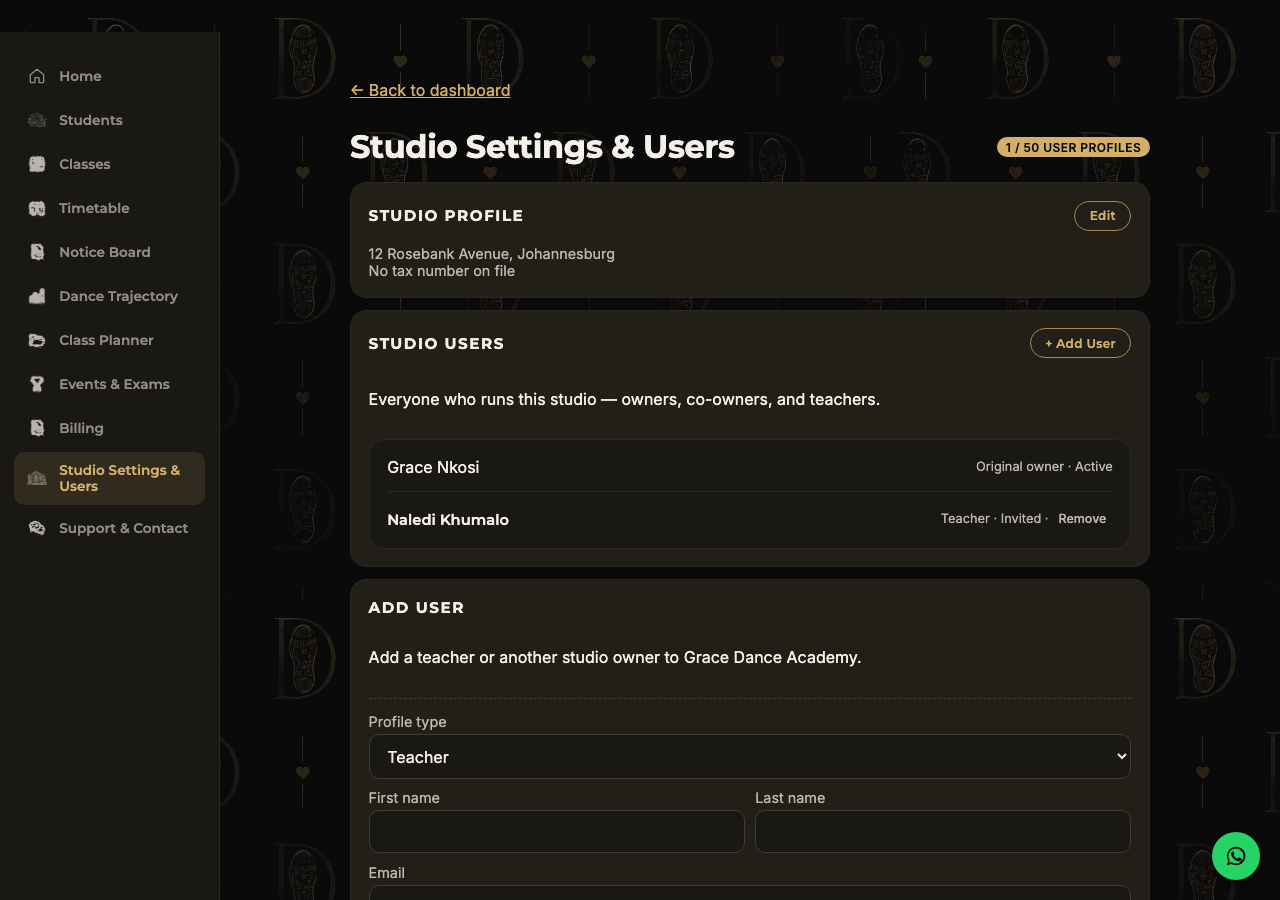
From Studio Settings & Users → Add User, enter their name and email and choose whether they're a teacher or a studio owner. They'll get an email invite — as long as they sign up with that exact email address, they're linked to your studio automatically. This page also shows how many user profiles you're using against your plan's limit.
Feature walkthrough
Once the basics are in place, here's what else is available — worth a browse even if you don't need it on day one.
Timetable
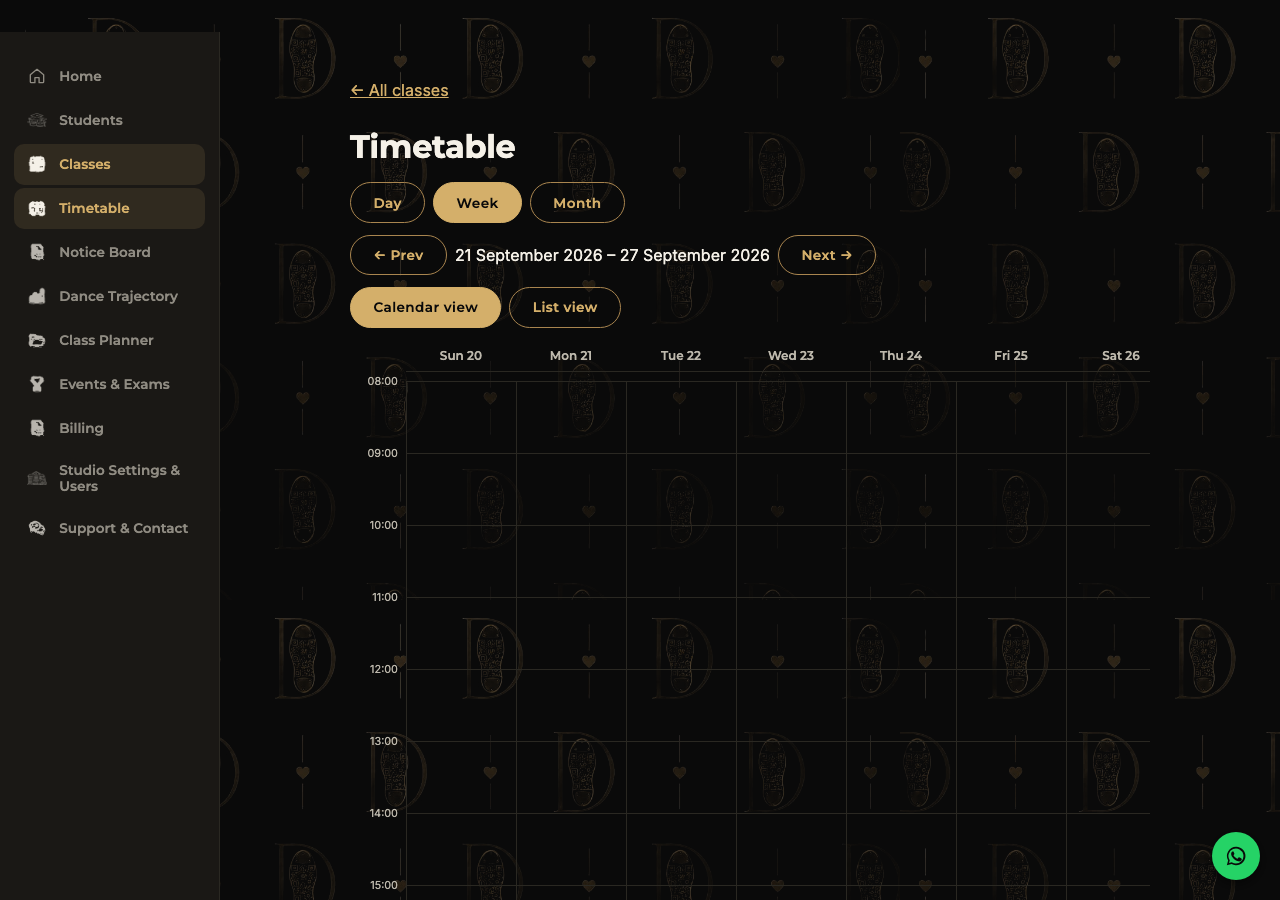
A full calendar view of every scheduled class session — switch between Day, Week, and Month, or flip to a List view. Sessions you add to a class (with a date, start, and end time) show up here automatically, and this is also where attendance check-in happens on the day.
Notice Board
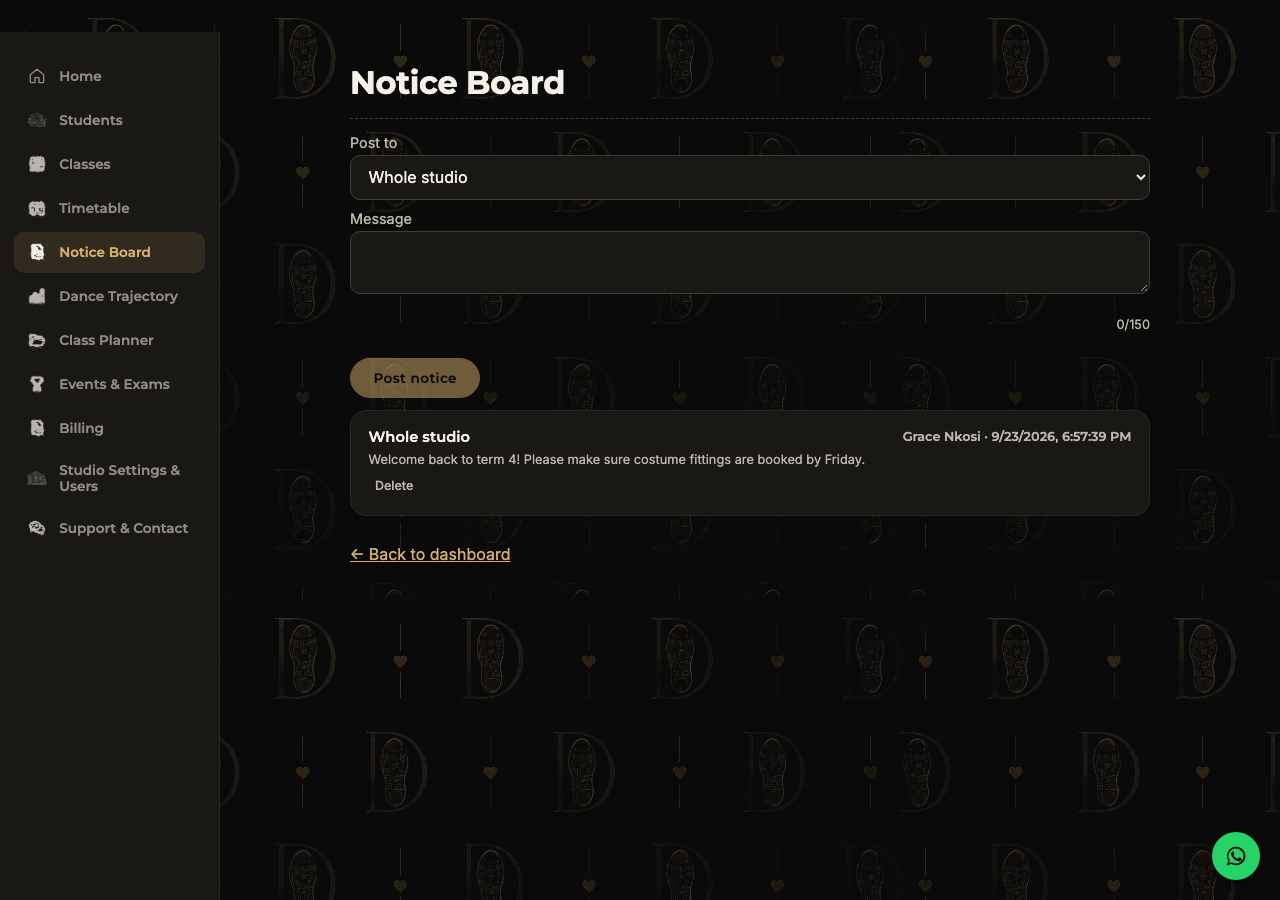
A lightweight announcement feed for the whole studio, or scoped to a single class. Short messages only (150 characters) — built for quick updates like term reminders or costume-fitting notices, not long newsletters.
Events & Exams
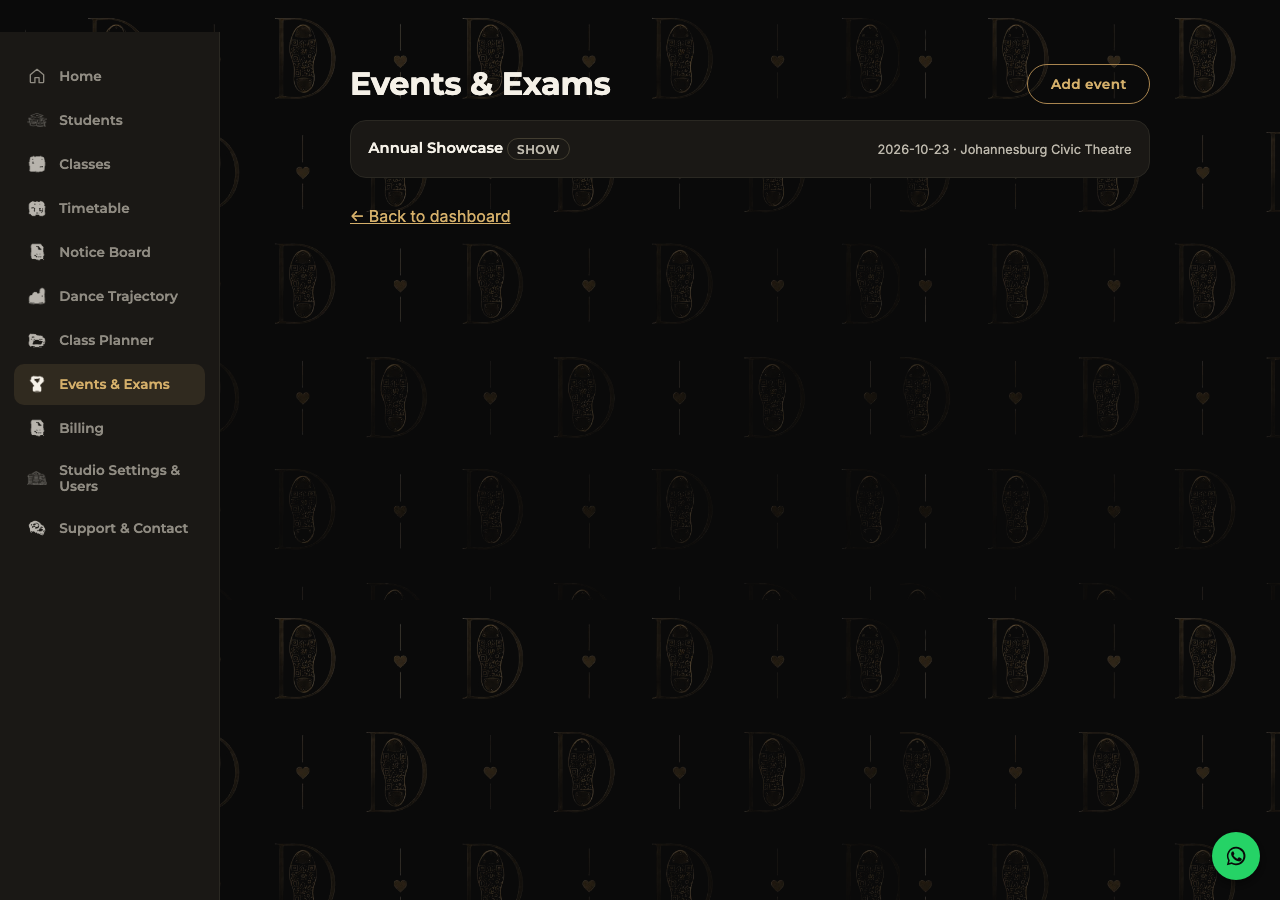
Track showcases, exams, competitions — anything with a date and a venue. Add participants from your student list once an event exists, and everyone involved can see it on their own dashboard.
Billing & Invoicing
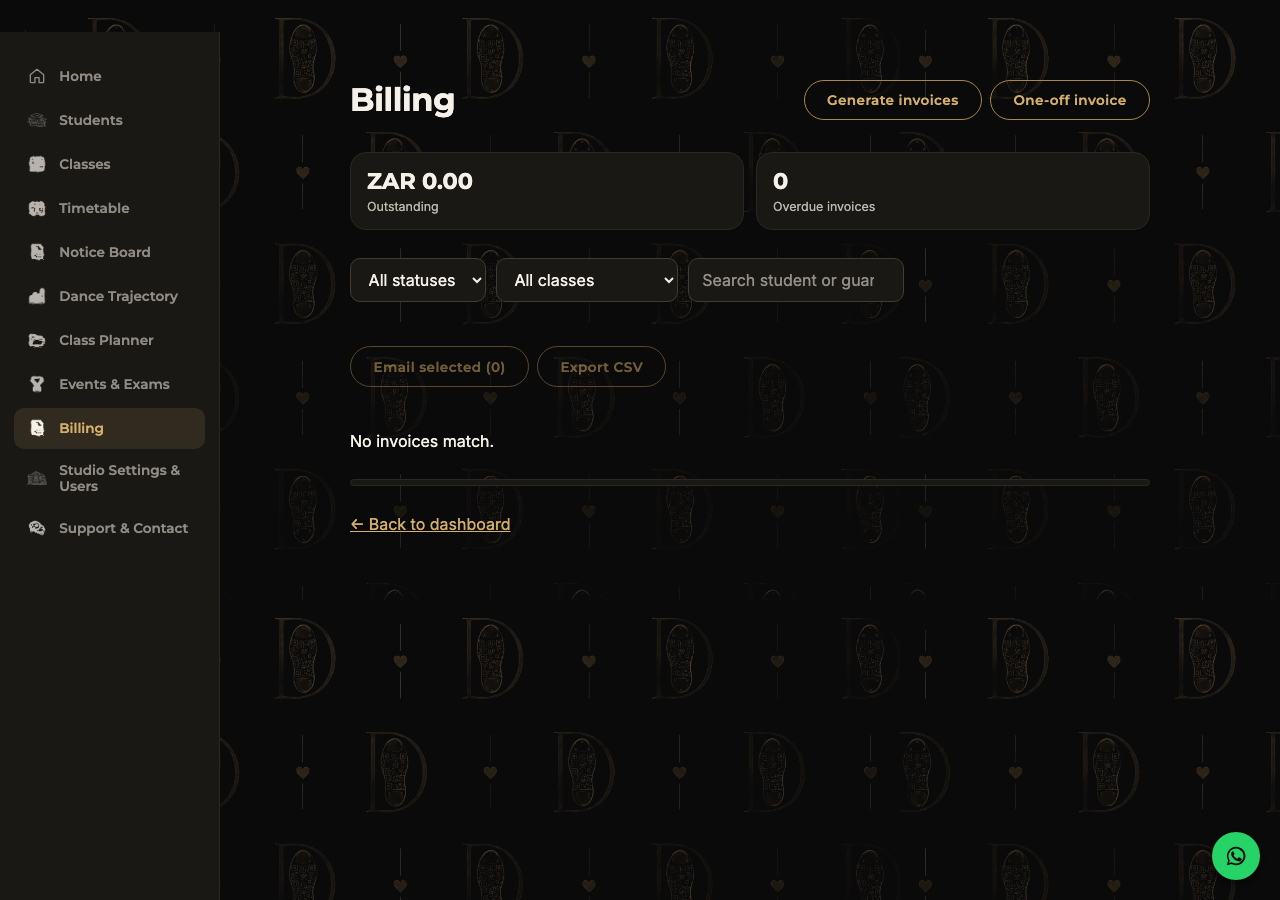
Generate invoices in bulk from attendance, or raise a one-off invoice manually. From here you can filter by status or class, email selected invoices straight to guardians, or export everything to CSV for your own records.
Class Planner
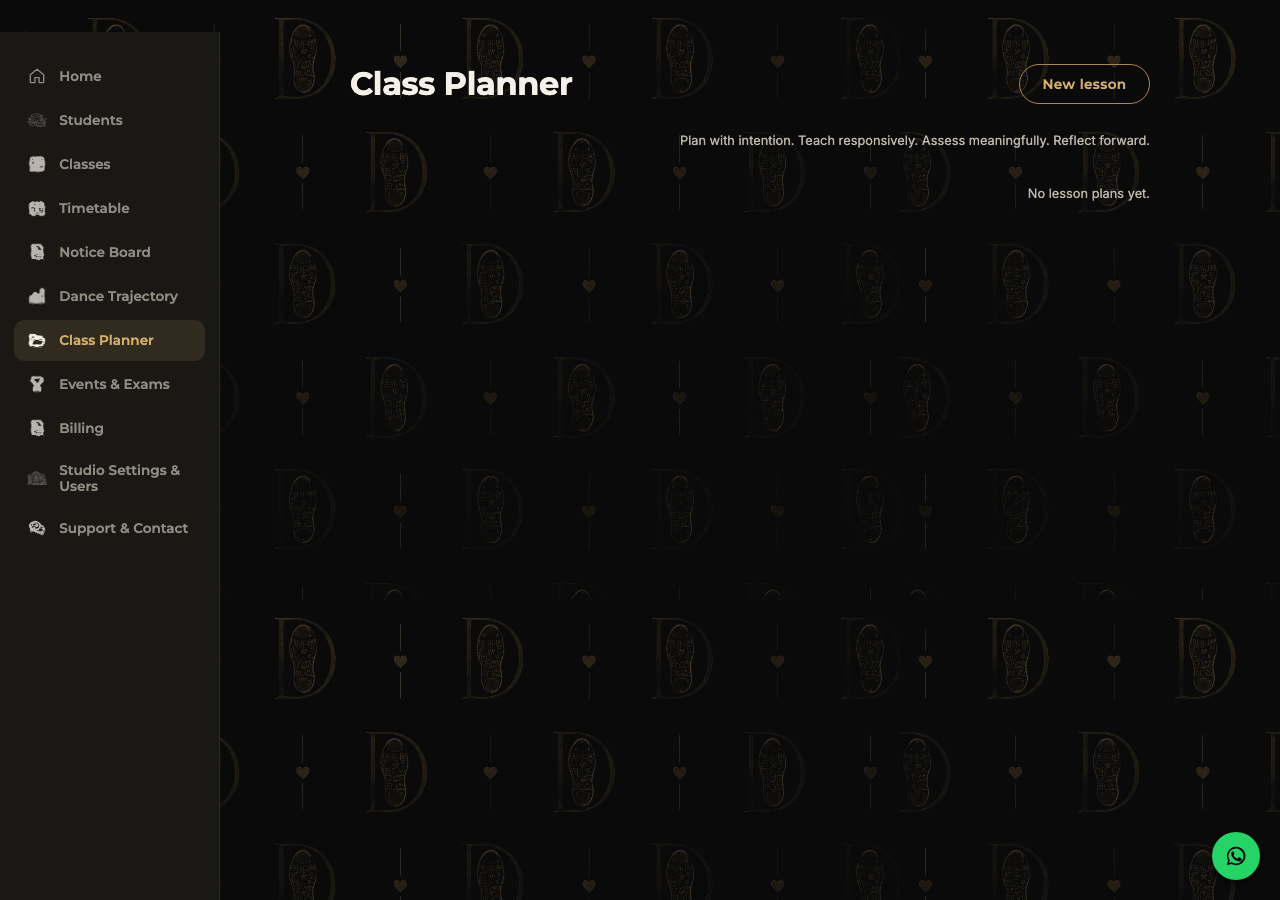
Build structured lesson plans ahead of class — objectives, activities, and a coaching-insights panel that references what happened last lesson, so nothing gets taught in a vacuum.
Dance Trajectory
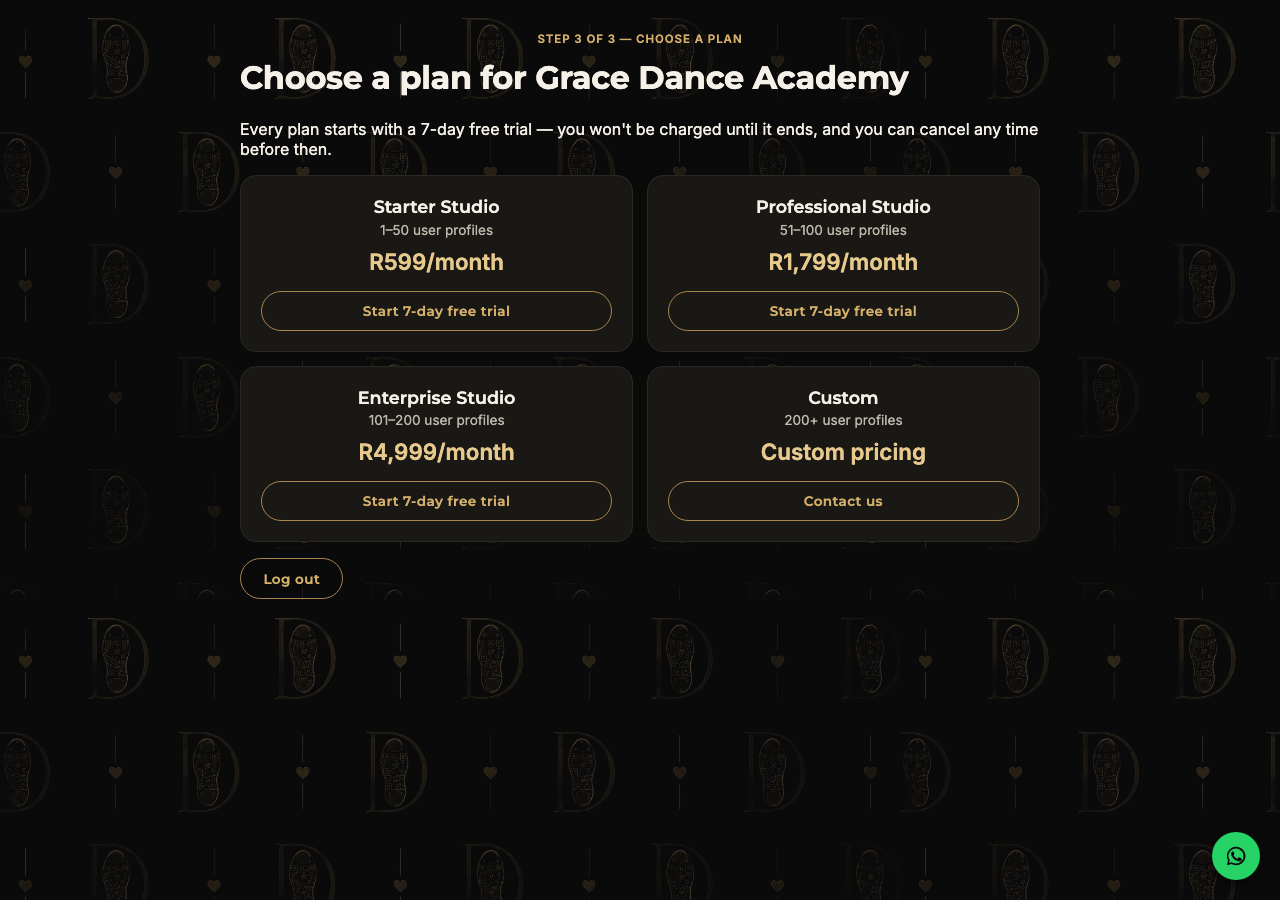
The heart of DancePassport: structured, ongoing assessment for every student — timing, musicality, artistry, focus — building into a real, lifelong record of their progress rather than a one-off report card.